


How to Fix CPU Overheating Issues Quickly
Introduction
How to Fix CPU Overheating Issues Quickly Step by Step Guide 2026
CPU overheating is a common problem in many computers. The CPU, also called the processor, performs most of the tasks in a system. It handles calculations, runs programs, and processes instructions from the operating system. Because of this heavy workload, the CPU naturally generates heat. Normally, cooling systems such as fans and heat sinks remove this heat. However, if the cooling system fails or airflow is poor, the CPU temperature may rise quickly. When the temperature becomes too high, the computer may slow down, restart suddenly, or shut down to protect itself from damage. Many beginners think their computer is broken when it slows down or crashes. In many cases, the real problem is simply overheating. Understanding the causes of CPU overheating and learning how to fix it can prevent serious damage and improve performance. This guide explains how to identify CPU overheating and how to fix it quickly. The steps are simple and beginner-friendly. By following this guide, you can keep your computer running smoothly and safely.
Signs That Your CPU Is Overheating
How to Fix CPU Overheating Issues Quickly Step by Step Guide 2026
Before fixing the problem, it is important to recognize the warning signs of CPU overheating. These symptoms often appear before serious damage occurs.
Some common signs include:
- Computer suddenly shuts down while working
- System becomes very slow during simple tasks
- Loud fan noise for long periods
- Frequent freezing or crashing of programs
- Blue screen errors during heavy tasks
- The computer case feels unusually hot
These symptoms occur because modern CPUs have built-in protection systems. When the temperature rises above safe limits, the processor reduces its speed to cool down. This process is called thermal throttling. If the temperature continues to rise, the computer may shut down automatically to prevent permanent damage. Recognizing these warning signs early helps you fix the issue before the CPU is harmed.


Check the CPU Temperature
How to Fix CPU Overheating Issues Quickly Step by Step Guide 2026
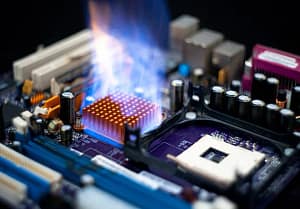
The first step in fixing overheating is checking the CPU temperature. Monitoring temperature helps confirm whether overheating is actually happening. Many free software tools allow users to monitor CPU temperatures. These programs read temperature sensors built into the processor. Popular monitoring tools include HWMonitor, Core Temp, and Open Hardware Monitor. These programs display real-time CPU temperature while the computer is running. When the computer is idle, the CPU temperature usually stays between 30°C and 50°C. During heavy tasks such as gaming or video editing, the temperature may rise to 70°C or 80°C. Temperatures above 90°C are considered dangerous and require immediate attention. If your CPU frequently reaches high temperatures, the cooling system may not be working properly. Monitoring temperature helps you confirm the issue before performing repairs.

How to Fix CPU Overheating Issues Quickly Step by Step Guide 2026
Clean Dust From the Cooling System
How to Fix CPU Overheating Issues Quickly Step by Step Guide 2026
Dust accumulation is one of the most common causes of CPU overheating. Over time, dust gathers inside the computer case and blocks airflow. The CPU cooler uses a heat sink and fan to remove heat from the processor. When dust builds up on these components, the fan cannot move air efficiently. This reduces the cooling system’s ability to remove heat. To fix this issue, turn off the computer and unplug it from the power source. Open the computer case carefully and inspect the cooling components. Use compressed air or a soft brush to remove dust from the CPU fan, heat sink, and case vents. Cleaning these components restores airflow and improves cooling performance. Regular cleaning can significantly reduce CPU temperature and prevent overheating problems.
CPU Overheating Troubleshooting Table
How to Fix CPU Overheating Issues Quickly Step by Step Guide 2026
| Symptom | Possible Cause | Solution |
| Computer shuts down suddenly | CPU overheating | Clean cooler and monitor temperature |
| High fan noise | Dust blocking airflow | Clean fans and vents |
| Slow performance | Thermal throttling | Improve cooling and airflow |
| System crashes during gaming | Poor CPU cooling | Upgrade CPU cooler |
| Very hot computer case | Poor ventilation | Improve airflow in the case |
This table helps beginners quickly match symptoms with possible solutions. By following a structured troubleshooting approach, it becomes easier to diagnose CPU overheating issues.
Replace or Reapply Thermal Paste
How to Fix CPU Overheating Issues Quickly Step by Step Guide 2026

Thermal paste plays an important role in CPU cooling. It is a special material placed between the CPU and the heat sink. Its purpose is to improve heat transfer between the processor and the cooler. Over time, thermal paste can dry out or lose effectiveness. When this happens, heat cannot transfer efficiently from the CPU to the cooler. As a result, the processor temperature rises quickly. Replacing thermal paste is a simple but effective solution. First remove the CPU cooler carefully. Then clean the old thermal paste using isopropyl alcohol and a lint-free cloth. After cleaning, apply a small amount of new thermal paste in the center of the CPU. Reinstall the cooler securely. This allows heat to transfer properly and helps reduce CPU temperature. Many users notice a significant drop in temperature after replacing old thermal paste.
Improve Airflow Inside the Computer Case
How to Fix CPU Overheating Issues Quickly Step by Step Guide 2026
Airflow plays a critical role in keeping computer components cool. Even if the CPU cooler is working correctly, poor airflow can trap hot air inside the case. A well-designed airflow system allows cool air to enter the case and hot air to exit efficiently. Most computer cases use intake fans at the front and exhaust fans at the back or top. Cable management also affects airflow. Loose cables can block air movement and create hot spots inside the case. Organizing cables improves ventilation and cooling performance. Placing the computer in a well-ventilated location also helps. Avoid placing the system in tight cabinets or near heat sources. Proper airflow reduces internal temperatures and prevents CPU overheating.
Prevent CPU Overheating in the Future
How to Fix CPU Overheating Issues Quickly Step by Step Guide 2026
Preventive maintenance is the best way to avoid overheating problems.
- Clean dust from fans and vents regularly.
- Ensure proper airflow inside the computer case.
- Replace thermal paste every few years.
- Use a high-quality CPU cooler.
- Avoid extreme overclocking.
- Monitor CPU temperatures during heavy tasks.
Following these steps keeps the cooling system working efficiently. Regular maintenance can extend the life of your CPU and improve overall system stability.


Conclusion
How to Fix CPU Overheating Issues Quickly Step by Step Guide 2026

CPU overheating can cause serious problems for any computer. It can slow down performance, crash programs, or even damage the processor permanently. Fortunately, most overheating issues have simple solutions. Start by recognizing warning signs such as loud fans, slow performance, and sudden shutdowns. Monitor CPU temperature using software tools to confirm the issue. Cleaning dust, replacing thermal paste, and improving airflow are some of the most effective solutions. Preventive maintenance also plays an important role. Regular cleaning and temperature monitoring help ensure that the CPU operates within safe limits. By following these steps, beginners can fix CPU overheating issues quickly and keep their computers running smoothly.
PLEASE SUBCRIBE MY WEBSITE TO CLICK HERE
TO CLICK HERE MORE INFORMATION


