


How to Fix USB Ports Not Working on PC desktop or laptop 2026

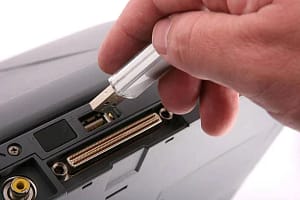
Introduction
How to Fix USB Ports Not Working on PC desktop or laptop 2026
USB ports are one of the most commonly used connections on a computer. They allow users to connect devices such as keyboards, mice, flash drives, printers, external hard drives, and many other accessories. Without working USB ports, using a computer becomes very difficult. Sometimes USB ports suddenly stop working. A device may not be recognized when it is connected. In other cases, the computer may show an error message or fail to detect the device completely. USB port problems can occur for several reasons. The issue may be related to software, drivers, operating system settings, or hardware damage. In many situations the problem is small and can be fixed easily. Understanding the possible causes of USB problems helps users troubleshoot the issue more effectively. Simple steps such as checking drivers or restarting the system can often solve the problem quickly. This guide explains the common reasons why USB ports stop working and how to fix them step by step. The solutions are simple and beginner friendly.
Common Reasons USB Ports Stop Working
How to Fix USB Ports Not Working on PC desktop or laptop 2026
USB ports can stop functioning for several reasons. Some issues are related to software, while others involve physical hardware problems. One common cause is outdated or corrupted USB drivers. Drivers allow the operating system to communicate with hardware devices. If they become damaged, the system may fail to recognize connected devices.Another possible cause is power management settings. Sometimes the operating system disables USB ports to save energy, especially in laptops. Physical damage can also cause USB ports to stop working. Dust, dirt, or bent connectors inside the port may prevent proper connection. In some cases, the problem may come from the connected device rather than the USB port itself. Identifying the cause of the problem helps users apply the correct solution.
Signs of USB Port Problems
How to Fix USB Ports Not Working on PC desktop or laptop 2026


When a USB port stops working, several symptoms may appear. Recognizing these signs helps determine whether the issue is related to the port or the connected device.
Common symptoms include:
- USB devices not detected by the computer.
- Error messages when connecting devices.
- Flash drives not appearing in file explorer.
- Keyboard or mouse suddenly stopping.
- Devices connecting and disconnecting repeatedly.
- USB ports provide power but no data transfer.
These signs indicate that the system is having difficulty communicating with USB devices.
Quick Troubleshooting Comparison
How to Fix USB Ports Not Working on PC desktop or laptop 2026
| Problem | Possible Cause | Solution |
| USB device not detected | Driver issue | Update USB drivers |
| Device disconnecting | Loose connection | Reconnect the device |
| Port has no power | Power settings issue | Adjust power management |
| Device works on another PC | Port hardware issue | Check or repair port |
| USB device not recognized | Operating system error | Restart the computer |
This table helps identify possible causes and solutions for common USB problems.

Restart Your Computer First
One of the simplest solutions for USB problems is restarting the computer. Many hardware issues are temporary and can be resolved by a system reboot. When the system restarts, the operating system reloads drivers and hardware services. This process can fix minor software conflicts that may prevent USB ports from functioning properly. Restarting also resets the USB controller. If the system had trouble detecting a device earlier, the restart may allow it to recognize the hardware correctly. After restarting the computer, reconnect the USB device and check whether it works properly. Although this solution is simple, it often resolves many minor hardware detection issues.
Update or Reinstall USB Drivers
Drivers are essential for communication between the operating system and hardware devices. If USB drivers become outdated or corrupted, USB ports may stop working. Updating drivers ensures that the system uses the latest compatible software for the USB controller. Modern operating systems usually update drivers automatically, but manual updates may sometimes be required. Reinstalling drivers can also fix problems caused by corrupted system files. Removing and reinstalling the USB controller drivers forces the operating system to refresh hardware settings. Users can check the device manager in the system settings to identify USB driver issues. Keeping drivers updated helps maintain stable hardware performance and prevents connectivity problems.
Check Physical USB Port Damage
Sometimes USB problems are caused by physical damage to the port. Dust or debris inside the port can block proper connection between the device and the computer. Carefully inspecting the port can help identify visible damage. If dirt or dust is present, gently cleaning the port with compressed air may help restore connectivity. Bent metal connectors inside the port can also prevent proper contact with the USB device. In such cases the port may need repair or replacement. Another simple test is connecting the device to another USB port. If the device works in a different port, the original port may be damaged. Checking hardware conditions helps determine whether the issue is physical rather than software related.


Additional Steps to Fix USB Ports
If the USB ports still do not work after basic troubleshooting, several additional steps can help resolve the issue.
- Test the USB device on another computer.
- Disable and re-enable USB controllers in device manager.
- Check power management settings for USB devices.
- Update the operating system.
- Try connecting the device to a different USB port.
- Reset BIOS settings if hardware issues persist.
These steps help identify deeper system problems that may affect USB functionality.
Conclusion
How to Fix USB Ports Not Working on PC desktop or laptop 2026

USB ports are essential for connecting external devices to a computer. When they stop working, many everyday tasks become difficult. Fortunately, most USB problems are easy to fix with simple troubleshooting steps. Common causes of USB issues include outdated drivers, power management settings, operating system errors, or physical port damage. Identifying the correct cause helps users apply the appropriate solution. Simple actions such as restarting the computer, updating drivers, or cleaning the USB port can often resolve the problem quickly. If the issue continues after troubleshooting, the problem may involve hardware damage that requires repair. By understanding these solutions, users can quickly restore USB functionality and keep their computers running smoothly.
please subcribe my website to click here
to click here more information


