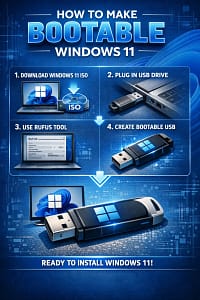
HOW TO MAKE BOOTABLE WINDOWS 11 THROUGH PEN DRIVE 2026

By pgollabala@gmail.com

Updated On:


Join WhatsApp

Join Now

HOW TO MAKE BOOTABLE WINDOWS 11
HOW TO MAKE BOOTABLE WINDOWS 11 THROUGH PEN DRIVE 2026

HOW TO MAKE BOOTABLE WINDOWS 11 THROUGH PEN DRIVE 2026

Below is a complete, updated, step-by-step guide on How to Make a Bootable Windows 11 Pen Drive (USB) in 2026.
This guide is written in simple English, suitable for beginners, technicians, bloggers, and students, and covers all modern methods, including TPM/Secure Boot bypass.


HOW TO MAKE A BOOTABLE WINDOWS 11 USB (PEN DRIVE) – 2026 COMPLETE GUIDE


1. INTRODUCTION

HOW TO MAKE BOOTABLE WINDOWS 11 THROUGH PEN DRIVE 2026

A bootable Windows 11 pen drive allows you to:

  • Install Windows 11 on a new PC or laptop
  • Reinstall Windows 11 if the system is corrupted
  • Upgrade from Windows 10
  • Repair boot or system issues

In 2026, Microsoft still officially supports Windows 11, but many users face TPM, Secure Boot, and CPU restrictions. This guide explains official and unofficial methods.


2. WHAT IS A BOOTABLE PEN DRIVE?

HOW TO MAKE BOOTABLE WINDOWS 11 THROUGH PEN DRIVE 2026

A bootable USB drive is a pen drive that contains:

  • Windows setup files
  • Boot configuration
  • EFI / Legacy boot support

When plugged in, your computer can start (boot) directly from the USB instead of the hard disk.


3. MINIMUM REQUIREMENTS (2026)

HOW TO MAKE BOOTABLE WINDOWS 11 THROUGH PEN DRIVE 2026

A. Hardware Requirements

Item Requirement
USB Pen Drive 8 GB minimum (16 GB recommended)
Computer Windows / Linux / macOS
Internet Required for ISO download
Target PC Any PC (even unsupported)

B. Windows 11 Official Requirements

HOW TO MAKE BOOTABLE WINDOWS 11

HOW TO MAKE BOOTABLE WINDOWS 11 THROUGH PEN DRIVE 2026

  • TPM 2.0
  • Secure Boot
  • 64-bit CPU
  • 4 GB RAM
  • 64 GB Storage

⚠️ Don’t worry – we’ll show how to bypass these limits.


4. METHODS TO CREATE WINDOWS 11 BOOTABLE USB

HOW TO MAKE BOOTABLE WINDOWS 11 THROUGH PEN DRIVE 2026

Clipster Tutorial Part 6 | 1 Referral Se $100 Earning Method 2026


Method List (2026 Updated)

  1. Microsoft Media Creation Tool (Official)
  2. Rufus Tool (Best & Recommended)
  3. Command Prompt (CMD – Advanced)
  4. Ventoy (Multiple ISO in One USB)
  5. Windows 11 Bootable USB on macOS
  6. Linux Method (Brief)

5. METHOD 1: MICROSOFT MEDIA CREATION TOOL (OFFICIAL METHOD)

Best For

  • Supported PCs
  • Beginners
  • Official installations

Step 1: Download Media Creation Tool

  1. Open browser
  2. Search:
    “Download Windows 11 from Microsoft”
  3. Open Microsoft official website
  4. Click Download Tool Now

Step 2: Insert USB Pen Drive

  • Insert 8GB or higher USB
  • Backup data (USB will be erased)

Step 3: Run the Tool

  1. Double-click the downloaded file
  2. Accept License Terms
  3. Choose Create installation media (USB)

Step 4: Select Language & Edition

  • Language: English (or your choice)
  • Edition: Windows 11

Step 5: Select USB Drive

  • Choose USB flash drive
  • Select your pen drive
  • Click Next

Step 6: Download & Creation

  • Tool downloads Windows 11
  • Automatically makes USB bootable
  • Time: 15–40 minutes

Pros

✔ Official
✔ Safe
✔ Easy

Cons

❌ Cannot bypass TPM
❌ Won’t work on old PCs


6. METHOD 2: RUFUS TOOL (BEST METHOD – 2026)

HOW TO MAKE BOOTABLE WINDOWS 11

MOST RECOMMENDED METHOD

Rufus is the most powerful tool to create Windows 11 bootable USB with TPM, Secure Boot, and RAM bypass.


Why Rufus is Best

✔ Bypass TPM 2.0
✔ Bypass Secure Boot
✔ Bypass CPU checks
✔ Offline account option
✔ Works on old laptops
✔ Faster than Microsoft tool


Step 1: Download Windows 11 ISO

  1. Go to Microsoft website
  2. Scroll to Download Windows 11 Disk Image (ISO)
  3. Select:
    • Windows 11 (multi-edition ISO)
  4. Choose language
  5. Download ISO (≈ 6 GB)

Step 2: Download Rufus (2026 Version)

  • Search: Rufus official website
  • Download Portable or Installer
  • Works without installation

Step 3: Insert USB Drive

  • Minimum 8 GB
  • All data will be erased

Step 4: Open Rufus

  • Run Rufus as Administrator

Step 5: Configure Rufus Settings

Option Select
Device Your USB
Boot Selection Disk or ISO Image
ISO Select Windows 11 ISO
Partition Scheme GPT (UEFI)
Target System UEFI
File System NTFS

Step 6: IMPORTANT – Windows 11 Customization Screen

After clicking START, Rufus shows options:

✅ Remove requirement for TPM 2.0
✅ Remove requirement for Secure Boot
✅ Remove requirement for 4GB RAM
✅ Remove requirement for online Microsoft account
✅ Disable BitLocker auto-encryption

✔ Tick ALL OPTIONS


Step 7: Start Creation

  • Click OK
  • USB formatting starts
  • Time: 10–15 minutes

🎉 Bootable Windows 11 USB Ready


7. METHOD 3: COMMAND PROMPT (CMD) – ADVANCED USERS

⚠️ Recommended only for advanced users

Common computer problems and solutions 2026

Step 1: Insert USB

Open Command Prompt as Administrator


Step 2: DiskPart Commands

diskpart
list disk
select disk X   (X = USB number)
clean
create partition primary
select partition 1
active
format fs=ntfs quick
assign
exit

Step 3: Mount Windows 11 ISO

  • Right-click ISO → Mount
  • Copy all files to USB

Limitations

❌ No TPM bypass
❌ Manual errors possible


8. METHOD 4: VENTOY (MULTI-BOOT USB)

Ventoy allows multiple ISO files in one USB.


Steps

  1. Download Ventoy
  2. Install Ventoy to USB
  3. Copy Windows 11 ISO to USB
  4. Boot & select ISO

Pros

✔ Multiple OS in one USB
✔ Easy ISO copy

Cons

❌ Some Secure Boot issues


9. HOW TO BOOT FROM USB (ALL PCs)

Boot Menu Keys

Brand Boot Key
HP F9
Dell F12
Lenovo F12
ASUS ESC
Acer F12
MSI F11

Steps

  1. Insert USB
  2. Restart PC
  3. Press Boot Key
  4. Select USB
  5. Windows Setup starts

10. INSTALL WINDOWS 11 FROM USB

Installation Steps

  1. Select Language
  2. Click Install Now
  3. Enter Product Key or Skip
  4. Select Custom Install
  5. Delete old partitions (optional)
  6. Select Drive
  7. Click Next

Installation takes 15–30 minutes


11. ACTIVATION AFTER INSTALLATION

Options

  • Digital License (auto-activate)
  • Windows 10 key (still works in 2026)
  • Genuine Windows 11 key

⚠️ Avoid illegal activators


12. COMMON PROBLEMS & FIXES

USB Not Showing in Boot Menu

✔ Enable USB Boot
✔ Disable Fast Boot
✔ Change BIOS mode


TPM Error

✔ Use Rufus bypass method


Secure Boot Error

✔ Disable Secure Boot temporarily


No Driver Found Error

✔ Use USB 2.0 port
✔ Load storage drivers


13. BIOS SETTINGS FOR WINDOWS 11

Setting Value
Boot Mode UEFI
Secure Boot Disabled (for old PCs)
TPM Disabled (if bypassed)
Fast Boot Disabled

14. WINDOWS 11 USB BEST PRACTICES (2026)

✔ Use 16GB USB
✔ Use Rufus latest version
✔ Always verify ISO
✔ Backup data before install
✔ Keep drivers ready

Fix slow laptop Windows 2026

15. FREQUENTLY ASKED QUESTIONS (FAQ)

Q1: Can I install Windows 11 on unsupported PC in 2026?

✅ Yes, using Rufus bypass


Q2: Is Rufus safe?

✅ Yes, 100% safe & open-source


Q3: USB format NTFS or FAT32?

➡ NTFS (recommended)


Q4: Can I reuse the USB?

✅ Yes, reformat anytime


16. FINAL RECOMMENDATION

BEST METHOD IN 2026:
👉 Rufus + Windows 11 ISO

✔ Works on all PCs
✔ Bypasses restrictions
✔ Fast & reliable


17. CONCLUSION

Creating a bootable Windows 11 pen drive in 2026 is easy if you follow the correct method. While Microsoft limits installation on old hardware, tools like Rufus make Windows 11 accessible to everyone.

Whether you are:

  • A home user
  • A technician
  • A student
  • A blogger

This guide gives you everything you need to successfully create and use a Windows 11 bootable USB.


please subscribe website to click here 

Leave a Comment