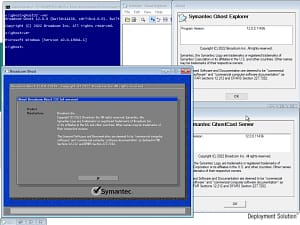
How to Create A Bootable Norton Ghost USB Drive 2026

By pgollabala@gmail.com

Published On:


Join WhatsApp

Join Now

How to Create A Bootable Norton Ghost USB Drive 2026

How to Create a Bootable Norton Ghost USB Drive (2026 Complete Guide)

How to Create A Bootable Norton Ghost USB Drive 2026

Introduction

How to Create A Bootable Norton Ghost USB Drive 2026

How to Create A Bootable Norton Ghost USB Drive 2026Even though modern backup tools like Macrium Reflect, Acronis True Image, and Clonezilla are popular today, Norton Ghost still holds a special place for many technicians, system administrators, and legacy-system users.

In 2026, Norton Ghost is no longer officially supported by Symantec, but it is still widely used for:

  • Legacy PCs
  • Offline disk cloning
  • Bare-metal recovery
  • Fast image restoration
  • Older Windows systems (XP, 7, some Windows 10 setups)

One of the most powerful ways to use Norton Ghost is by creating a bootable USB drive. This allows you to:

  • Boot a computer even if Windows won’t start
  • Create or restore disk images offline
  • Clone hard drives and SSDs
  • Recover data after system failure

This guide explains step-by-step how to create a bootable Norton Ghost USB drive in 2026, covering DOS-based, WinPE-based, and UEFI considerations, along with common errors and best practices.


What Is Norton Ghost?

How to Create A Bootable Norton Ghost USB Drive 2026Norton Ghost

is a disk imaging and cloning software originally developed by Binary Research and later acquired by Symantec.

Key Features

  • Full disk imaging
  • Partition backup and restore
  • Disk-to-disk cloning
  • Compression support
  • Offline backup using DOS
  • Reliable for legacy systems

Common Versions Used Today

Version Use Case
Ghost 11.5 DOS-based, most popular
Ghost 12–15 Windows-based (older)
Ghost Solution Suite Enterprise imaging

👉 Ghost 11.5 DOS is still the most stable choice for bootable USBs.


Why Create a Bootable Norton Ghost USB?

How to Create A Bootable Norton Ghost USB Drive 2026

A bootable USB is better than CD/DVD because:

  • USBs are faster than optical discs
  • Most modern PCs no longer have DVD drives
  • Easier to update and reuse
  • Works offline (no OS required)
  • Perfect for repair technicians

Typical Use Scenarios

  • Windows won’t boot
  • HDD/SSD replacement
  • Virus-infected systems
  • Mass deployment (schools/offices)
  • Backup before OS upgrade

System Requirements (2026)

Hardware

  • USB Flash Drive (4GB minimum, 8GB recommended)
  • PC with USB boot support
  • Legacy BIOS or UEFI with CSM (for DOS Ghost)

Software

  • Norton Ghost (11.5 recommended)
  • Rufus / HP USB Disk Storage Tool
  • DOS boot files (FreeDOS or MS-DOS)
  • Windows PC for preparation

Important Note About UEFI Systems

Modern PCs (Windows 11 / 2026 hardware) use UEFI + Secure Boot.

Table by Vyapar billing software for all Indian types restaurants 2026

⚠️ Norton Ghost DOS does NOT support Secure Boot

What You Must Do:

  1. Enter BIOS/UEFI settings
  2. Disable Secure Boot
  3. Enable Legacy Boot / CSM
  4. Set USB as first boot device

Method 1: Create Bootable Norton Ghost USB Using Rufus (Recommended)

How to Create A Bootable Norton Ghost USB Drive 2026

Step 1: Download Required Files

You need:

  • Norton Ghost 11.5 (ghost.exe)
  • Rufus (latest version)
  • FreeDOS (built into Rufus)

Step 2: Insert USB Drive

⚠️ Backup data — USB will be formatted.


Step 3: Open Rufus

Configure settings:

Option Value
Device Your USB
Boot Selection FreeDOS
Partition Scheme MBR
Target System BIOS (or UEFI-CSM)
File System FAT32
Volume Label GHOST_USB

Click Start → Wait until complete.


Step 4: Copy Norton Ghost Files

After Rufus finishes:

  1. Open USB drive
  2. Create folder: GHOST
  3. Copy ghost.exe into that folder

Step 5: Test Boot

Restart PC → Boot Menu (F12 / ESC / F9) → Select USB

You should see:

FreeDOS Command Prompt
C:\>

Type:

cd ghost
ghost.exe

🎉 Norton Ghost will launch!

how to activate office 2016 for free without product key through command prompt 2026

Method 2: Create Bootable USB Using HP USB Disk Storage Tool (Classic Method)

This method is preferred by old-school technicians.

Requirements

  • HP USB Disk Storage Tool
  • MS-DOS boot files
  • Norton Ghost files

Steps

  1. Run HP Tool as Administrator
  2. Select USB device
  3. Choose:
    • File system: FAT32
    • Enable “Create DOS Startup Disk”
  4. Browse DOS boot files
  5. Click Start

After completion:

  • Copy ghost.exe to USB
  • Boot and run Ghost

Method 3: Create WinPE-Based Norton Ghost USB (Advanced)

This is useful when:

  • DOS drivers don’t detect NVMe/USB drives
  • You want better hardware support

Tools Needed

  • Windows ADK (WinPE)
  • Ghost32.exe or Ghost64.exe
  • Rufus

High-Level Steps

  1. Create WinPE ISO using ADK
  2. Add Ghost executable to WinPE image
  3. Create bootable USB using Rufus
  4. Boot into WinPE
  5. Run Ghost from command prompt

⚠️ This method is complex but supports modern hardware better.


Using Norton Ghost from USB

Backup (Create Image)

  1. Launch Ghost
  2. Choose: Local → Partition → To Image
  3. Select source drive
  4. Choose destination (external HDD)
  5. Set compression
  6. Start backup

Restore Image

  1. Boot from USB
  2. Launch Ghost
  3. Choose: Local → Partition → From Image
  4. Select image file
  5. Select target disk
  6. Confirm restore

Clone Disk

  1. Local → Disk → To Disk
  2. Select source disk
  3. Select destination disk
  4. Proceed

⚠️ Destination disk data will be erased.


Common Problems and Fixes

USB Not Booting

✔ Enable Legacy Boot
✔ Disable Secure Boot
✔ Use MBR partition scheme


Hard Disk Not Detected

✔ Switch SATA mode to IDE
✔ Use WinPE method for NVMe
✔ Update BIOS


“No USB Found” Error

✔ Use USB 2.0 port
✔ Try another flash drive
✔ Recreate USB


Best Practices (2026)

  • Always test USB before real use
  • Keep backups on external HDD
  • Label images with date + PC name
  • Store Ghost USB safely
  • Use modern tools for Windows 11 systems

Is Norton Ghost Still Worth Using in 2026?

Pros

✔ Extremely reliable
✔ Fast imaging
✔ Offline recovery
✔ Perfect for legacy PCs

Cons

✖ No Secure Boot support
✖ No official updates
✖ Limited NVMe support

👉 Verdict:
Still excellent for Windows 7 / legacy systems, but for modern Windows 11 PCs, consider newer tools.

Symantec Ghost Boot CD 12.0 Build 11436 x86 (Win10PE) 2026 windows backup c drive or all files through ghost iso

Recommended Alternatives (Optional)

Tool Best For
Macrium Reflect Modern Windows
Clonezilla Open-source
AOMEI Backupper Easy UI
Acronis Enterprise use

Final Conclusion

Creating a bootable Norton Ghost USB drive in 2026 is still completely possible and practical, especially for:

  • Technicians
  • Repair shops
  • Legacy system users
  • Offline backup needs

By following this guide, you can confidently:

  • Prepare a reliable Ghost USB
  • Boot any compatible PC
  • Backup, clone, or restore disks safely

video link to click here 

refferal link to click here 

hindi link to click here 

video to click here 

please subcribe my website to click here 


Leave a Comment