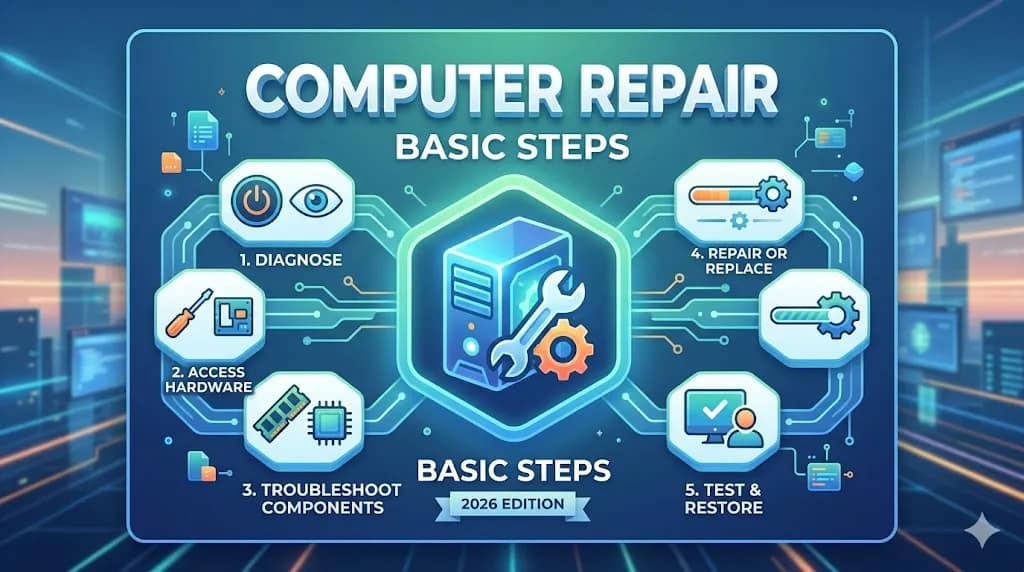
Computer repair basic steps 2026

By pgollabala@gmail.com

Published On:


Computer repair basic steps 2026

Join WhatsApp

Join Now

Computer repair basic steps 2026

Computer Repair Basic Steps (2026 Complete Guide for Beginners)

Website:https://sreekrishnatechsolutions.comEmail:pgollabala@gmail.com


Introduction

Computer repair basic steps 2026

Computers are an essential part of our daily lives, whether for work, education, or entertainment. However, like any electronic device, they can face issues such as slow performance, startup errors, overheating, and hardware failures. Understanding computer repair basic steps can help you troubleshoot problems quickly and save money on repairs.


Why Learn Computer Repair Basics?

Learning basic computer repair skills has many benefits:

  • Saves money on technician fees
  • Helps solve problems quickly
  • Improves computer performance
  • Useful for students and professionals
  • Opens opportunities for freelance or repair business

Step 1: Identify the Problem

Before fixing anything, you must identify the issue. Common problems include:

  • Computer not turning on
  • Slow performance
  • Blue screen errors
  • Internet connectivity issues
  • Overheating

Quick Checks

  • Is the power cable connected properly?
  • Is the battery charged (for laptops)?
  • Are there any error messages?

Understanding the problem is the first and most important step.

Clipster Tutorial Part 6 | 1 Referral Se $100 Earning Method 2026

Step 2: Restart the Computer

This may sound simple, but restarting fixes many issues.

Why Restart Works

  • Clears temporary files
  • Resets system processes
  • Fixes minor software glitches

👉 Always try restarting before doing advanced troubleshooting.


Step 3: Check Hardware Connections

Loose or damaged hardware can cause serious problems.

Things to Check

  • Power cables
  • Monitor cables
  • Keyboard and mouse connections
  • RAM and hard drive (if possible)

If you are using a desktop, open the cabinet carefully and ensure all components are properly connected.


Step 4: Boot in Safe Mode

Safe Mode helps diagnose software-related problems.

How It Helps

  • Loads only essential drivers
  • Helps remove viruses
  • Allows troubleshooting without interference

When to Use

  • System crashes
  • Blue screen errors
  • Software conflicts

Step 5: Check for Virus and Malware

Viruses can slow down or damage your system.

Symptoms of Virus Infection

  • Slow performance
  • Pop-up ads
  • Unknown programs
  • Files getting deleted

Solution

  • Install antivirus software
  • Run a full system scan
  • Remove detected threats

👉 Keep your antivirus updated for better protection.


Step 6: Free Up Disk Space

Low storage can make your computer slow.

Common computer problems and solutions 2026

How to Clean Disk Space

  • Delete temporary files
  • Remove unused programs
  • Empty recycle bin
  • Use disk cleanup tools

Recommended Practice

Keep at least 20–30% free space on your system drive.


Step 7: Update Operating System and Drivers

Outdated software can cause compatibility issues.

Why Updates Are Important

  • Fix bugs
  • Improve performance
  • Enhance security

What to Update

  • Windows or macOS
  • Device drivers
  • Software applications

Step 8: Check RAM and Performance

If your computer is slow, RAM may be the issue.

Signs of Low RAM

  • Lagging system
  • Applications not responding
  • Frequent freezing

Solution

  • Close unused programs
  • Upgrade RAM if possible

Step 9: Fix Overheating Issues

Overheating can damage your computer.

Causes

  • Dust inside CPU
  • Faulty fan
  • Poor ventilation

Solutions

  • Clean internal components
  • Use cooling pad (for laptops)
  • Ensure proper airflow

Step 10: Repair or Replace Hard Drive

Hard drive issues can lead to data loss.

Signs of Hard Drive Failure

  • Strange noises
  • Slow file access
  • Frequent crashes

Solutions

  • Backup data immediately
  • Use disk checking tools
  • Replace HDD/SSD if needed

Step 11: Reinstall Operating System

If nothing works, reinstalling the OS is the last option.

Benefits

  • Removes all errors
  • Improves performance
  • Gives a fresh start

Important

  • Backup all important files before reinstalling

Basic Computer Repair Tools

You should have these tools:

  • Screwdriver set
  • Thermal paste
  • Cleaning brush
  • USB bootable drive
  • Antivirus software

Common Computer Problems and Solutions

Problem Solution
Computer not starting Check power supply
Slow performance Clean disk & upgrade RAM
No display Check monitor & cables
Overheating Clean fan & improve airflow
Internet issue Restart router

Tips for Preventing Computer Problems

Prevention is always better than repair.

Fix slow laptop Windows 2026
  • Keep your system updated
  • Install antivirus software
  • Avoid downloading unknown files
  • Clean your computer regularly
  • Use a UPS for power protection

SEO Tips for Ranking Your Blog on Google First Page

To rank your article on Google, follow these tips:

1. Use Target Keywords

  • Computer repair basic steps
  • Computer troubleshooting guide 2026
  • Fix computer problems

2. On-Page SEO

  • Use headings (H1, H2, H3)
  • Add meta description
  • Use keywords naturally

3. Content Quality

  • Write original content
  • Provide useful information
  • Avoid copying

4. Mobile-Friendly Design

  • Use responsive WordPress themes

5. Fast Loading Speed

  • Optimize images
  • Use caching plugins


Conclusion

Learning computer repair basic steps is a valuable skill in today’s digital world. By following this guide, you can easily diagnose and fix common computer problems without needing professional help.

Whether you are a beginner or an advanced user, these troubleshooting steps will help you maintain your system and improve performance.


Call to Action

If you found this guide helpful, visit our website:
👉 https://sreekrishnatechsolutions.com

For support or queries, contact us at:
📧 pgollabala@gmail.com


PLEASE SUBSCRIBE MY WEBSITE TO CLICK HERE

TO CLICK HERE MORE INFORMATION

Leave a Comment