how to create local user accounts in windows 11 with step by steps 2026

By pgollabala@gmail.com

Published On:


Join WhatsApp

Join Now

how to create local user accounts in windows 11 with step by steps 2026

How to Create Local User Accounts in Windows 11 (Step-by-Step Guide – 2026)

how to create local user accounts in windows 11 with step by steps 2026

Introduction

how to create local user accounts in windows 11 with step by steps 2026

Windows 11 allows you to create different types of user accounts so that multiple people can use the same computer safely and independently. One of the most important and commonly used account types is the Local User Account.

A local user account is an account that exists only on your computer. Unlike a Microsoft account, it does not require an internet connection or email address. In 2026, many users still prefer local accounts for privacy, security, offline use, labs, schools, offices, and troubleshooting purposes.

This guide explains everything you need to know about creating local user accounts in Windows 11, including:

  • What a local account is
  • Why you should use a local account
  • Different methods to create one
  • Step-by-step instructions for beginners and advanced users
  • Admin vs standard local accounts
  • Common errors and solutions
  • Best practices in 2026

What Is a Local User Account in Windows 11?

how to create local user accounts in windows 11 with step by steps 2026

A local user account:

  • Is created and stored only on the PC
  • Does not sync with Microsoft services
  • Does not require email or internet
  • Has its own:
    • Desktop
    • Documents
    • Settings
    • Apps (user-specific)

Local Account vs Microsoft Account

how to create local user accounts in windows 11 with step by steps 2026

Feature Local Account Microsoft Account
Internet required ❌ No ✅ Yes
Email required ❌ No ✅ Yes
Sync settings ❌ No ✅ Yes
Privacy ✅ High Medium
Best for Offline users, labs, offices Home & cloud users

Why Create a Local User Account in 2026?

how to create local user accounts in windows 11 with step by steps 2026

People still choose local accounts in 2026 because:

  • 🔐 Better privacy control
  • 🧪 Ideal for testing and training
  • 🏫 Schools and labs prefer offline accounts
  • 👨‍👩‍👧 Multiple family members use one PC
  • 🛠 IT admins need controlled access
  • 🚫 No forced Microsoft sign-in

Requirements Before Creating a Local Account

how to create local user accounts in windows 11 with step by steps 2026

Before you start:

  • You must be logged in as an Administrator
  • Windows 11 must be activated
  • You should decide:
    • Account name
    • Password (recommended)
    • Account type (Standard or Administrator)

Method 1: Create a Local User Account Using Settings (Recommended)

how to create local user accounts in windows 11 with step by steps 2026

Symantec Ghost Boot CD 12.0 Build 11436 x86 (Win10PE) 2026 windows backup c drive or all files through ghost iso

This is the easiest and safest method in Windows 11 (2026).

Step-by-Step Instructions

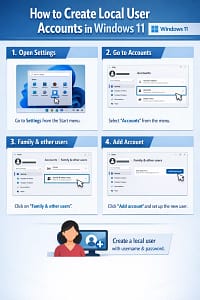
Step 1: Open Settings

  • Press Windows + I
  • OR click Start > Settings

Step 2: Go to Accounts

  • In Settings, click Accounts
  • Select Other users

Step 3: Add a New User

  • Click Add account

Step 4: Choose “I don’t have this person’s sign-in information”

  • Windows will ask for a Microsoft account
  • Click I don’t have this person’s sign-in information

Step 5: Select “Add a user without a Microsoft account”

  • Click Add a user without a Microsoft account

Step 6: Enter Local Account Details

Fill in:

  • Username
  • Password
  • Confirm password
  • Security questions

Click Next


Step 7: Local Account Created

The local user account is now created successfully.


Method 2: Create a Local User Account Using Control Panel

This method is still available in Windows 11 (2026) and useful for traditional users.

Steps

  1. Press Windows + R
  2. Type control and press Enter
  3. Open User Accounts
  4. Click Manage another account
  5. Click Add a new user in PC settings
  6. Follow the same steps as Method 1

Method 3: Create Local User Account Using Computer Management

Best for IT administrators.

Steps

  1. Press Windows + X
  2. Select Computer Management
  3. Expand Local Users and Groups
  4. Click Users
  5. Right-click → New User
  6. Enter:
    • Username
    • Password
    • Confirm password
  7. Click Create

Method 4: Create Local User Account Using Command Prompt (CMD)

This method is used by advanced users and technicians.

Steps

  1. Open Command Prompt as Administrator
  2. Run the command:
net user username password /add

Example:

net user testuser Test@123 /add

Method 5: Create Local User Account Using PowerShell

Steps

  1. Open PowerShell as Administrator
  2. Run:
New-LocalUser "username" -Password (Read-Host -AsSecureString)

How to Make a Local User an Administrator

Using Settings

  1. Go to Settings > Accounts > Other users
  2. Select the user
  3. Click Change account type
  4. Choose Administrator
  5. Click OK

Standard User vs Administrator Account

Feature Standard User Administrator
Install software ❌ Limited ✅ Yes
Change system settings ❌ No ✅ Yes
Safe for children ✅ Yes ❌ No

How to Switch to a Local Account from Microsoft Account

  1. Open Settings
  2. Go to Accounts > Your info
  3. Click Sign in with a local account instead
  4. Follow on-screen instructions

Common Problems and Solutions

Problem 1: “Add account” option missing

✔ Log in as Administrator

Problem 2: Password forgotten

✔ Reset using Administrator account

Problem 3: Cannot create account

✔ Check Group Policy restrictions


Best Practices for Local Accounts (2026)

how to create local user accounts in windows 11 with step by steps 2026

  • Use strong passwords
  • Create standard accounts for daily use
  • Keep one admin account
  • Remove unused accounts
  • Enable device encryption

Security Tips

  • Always set security questions
  • Avoid blank passwords
  • Use different passwords for each user
  • Regularly update Windows

Frequently Asked Questions (FAQ)

how to create local user accounts in windows 11 with step by steps 2026

Can I use Windows 11 without a Microsoft account?

Yes, local accounts fully work in 2026.

How to Activate Windows 11 for Free Permanently with step by step 2025

Can local accounts access internet?

Yes, but without Microsoft sync.

Can I convert later?

Yes, anytime.


Conclusion

Creating a local user account in Windows 11 is simple, secure, and still highly useful in 2026. Whether you are a home user, student, office employee, or IT administrator, local accounts give you full control, privacy, and offline functionality.

By following the step-by-step methods in this guide, you can easily create, manage, and secure local user accounts on any Windows 11 PC.


You can create user accounts in Windows 11 using Command Prompt (CMD) very easily. Below is a clear, step-by-step guide with examples for local users and administrator users.


⚠️ Important

  • You must run Command Prompt as Administrator
  • Works on Windows 11 Home, Pro, Enterprise (2026 and later)

🔹 Step 1: Open Command Prompt as Administrator

You can create user accounts in Windows 11 using Command Prompt (CMD) very easily. Below is a clear, step-by-step guide with examples for local users and administrator users.


⚠️ Important

  • You must run Command Prompt as Administrator
  • Works on Windows 11 Home, Pro, Enterprise (2026 and later)

🔹 Step 1: Open Command Prompt as Administrator

  1. Press Windows + S
  2. Type cmd
  3. Right-click Command Prompt
  4. Click Run as administrator
  5. Click Yes (UAC prompt)

🔹 Step 2: View Existing User Accounts (Optional)

net user

This shows all user accounts on your PC.


🔹 Step 3: Create a New Local User Account

Syntax:

net user username password /add

Example:

net user testuser 12345 /add

✔ This creates a standard local user named testuser.


🔹 Step 4: Create a User Without Password (Not Recommended)

net user testuser2 /add

You can set the password later.


🔹 Step 5: Create a User with Password Prompt (More Secure)

net user secureuser * /add
  • You’ll be asked to enter the password securely
  • Password will not be visible

🔹 Step 6: Make the User an Administrator

By default, new users are standard users.

Add user to Administrators group:

net localgroup administrators username /add

Example:

net localgroup administrators testuser /add

✔ Now testuser has admin privileges


🔹 Step 7: Remove User from Administrator Group (Optional)

net localgroup administrators username /delete

🔹 Step 8: Set or Change User Password

net user username newpassword

Example:

net user testuser New@123

🔹 Step 9: Delete a User Account

net user username /delete

Example:

net user testuser /delete

⚠️ This removes the account but does not delete user files in C:\Users


🔹 Step 10: Disable or Enable a User Account

Disable:

net user username /active:no

Enable:

net user username /active:yes

🔹 Step 11: Create User with Full Name & Description

net user username password /add /fullname:"Full Name" /comment:"Description"

Example:

net user officeuser Pass@123 /add /fullname:"Office Staff" /comment:"Accounts Department"

🔹 Step 12: Log In with the New User

  1. Sign out or restart
  2. Select the new user
  3. Enter the password

🧠 Common Errors & Fixes

Error Solution
Access denied Run CMD as Administrator
User already exists Choose a different username
Password complexity error Use strong password (Caps, number, symbol)

✅ Summary

✔ Create local user
✔ Set or change password
✔ Grant admin access
✔ Enable/disable users
✔ Works offline (no Microsoft account needed)


If you want:

  • PowerShell method
  • Batch file automation
  • Group Policy control
  • Screenshot-based guide
  • Featured image for this topic

Just tell me 👍

  1. Press Windows + S
  2. Type cmd
  3. Right-click Command Prompt
  4. Click Run as administrator
  5. Click Yes (UAC prompt)

🔹 Step 2: View Existing User Accounts (Optional)

net user

This shows all user accounts on your PC.


🔹 Step 3: Create a New Local User Account

Syntax:

net user username password /add

Example:

net user testuser 12345 /add

✔ This creates a standard local user named testuser.


🔹 Step 4: Create a User Without Password (Not Recommended)

net user testuser2 /add

You can set the password later.


🔹 Step 5: Create a User with Password Prompt (More Secure)

net user secureuser * /add
  • You’ll be asked to enter the password securely
  • Password will not be visible

🔹 Step 6: Make the User an Administrator

By default, new users are standard users.

Add user to Administrators group:

net localgroup administrators username /add

Example:

net localgroup administrators testuser /add

✔ Now testuser has admin privileges


🔹 Step 7: Remove User from Administrator Group (Optional)

net localgroup administrators username /delete

🔹 Step 8: Set or Change User Password

net user username newpassword

Example:

net user testuser New@123

🔹 Step 9: Delete a User Account

net user username /delete

Example:

net user testuser /delete

⚠️ This removes the account but does not delete user files in C:\Users


🔹 Step 10: Disable or Enable a User Account

Disable:

net user username /active:no

Enable:

net user username /active:yes

🔹 Step 11: Create User with Full Name & Description

net user username password /add /fullname:"Full Name" /comment:"Description"

Example:

net user officeuser Pass@123 /add /fullname:"Office Staff" /comment:"Accounts Department"

🔹 Step 12: Log In with the New User

  1. Sign out or restart
  2. Select the new user
  3. Enter the password

🧠 Common Errors & Fixes

Error Solution
Access denied Run CMD as Administrator
User already exists Choose a different username
Password complexity error Use strong password (Caps, number, symbol)

✅ Summary

✔ Create local user
✔ Set or change password
✔ Grant admin access
✔ Enable/disable users
✔ Works offline (no Microsoft account needed)


If you want:

  • PowerShell method
  • Batch file automation
  • Group Policy control
  • Screenshot-based guide
  • Featured image for this topic

Just tell me 👍

Leave a Comment