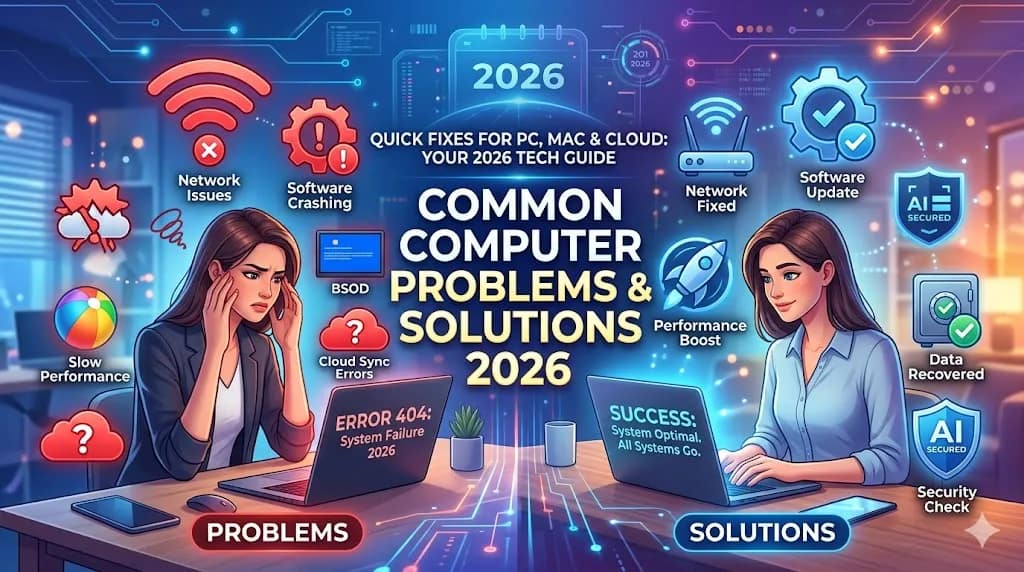
Outline for Simple Computer Troubleshooting Guide
Simple computer troubleshooting step by steps 2026
- Introduction
- Simple computer troubleshooting step by steps 2026Simple computer troubleshooting is the basic process of identifying and fixing common computer problems that occur during daily use. Computers may face issues like slow performance, system not starting, no internet connection, software errors, or devices not working properly. Many of these problems are minor and can be solved easily without the help of a technician if we understand the basic troubleshooting steps.
-
- Importance of troubleshooting
- Common computer problems
- Overview of basic troubleshooting steps
- Basic Computer Troubleshooting Tools
- Built-in diagnostic tools in Windows and Mac
- Third-party software (e.g., antivirus, system cleaners)
- Step 1: Check Power Issues
- Computer won’t turn on
- Monitor not turning on
- Power cable and outlet checks
- Battery issues (laptops)
- Step 2: Check Connections
- Loose cables (keyboard, mouse, printer, etc.)
- Network connection (Wi-Fi or Ethernet issues)
- Peripheral devices not recognized
- Step 3: Restart the Computer
- The power of a restart in solving problems
- Soft reset vs. hard reset
- Step 4: Update Software & Drivers
- Why updating is essential
- How to update Windows, Mac, and drivers
- Automatic updates vs. manual updates
- Step 5: Check for Viruses and Malware
- Signs of malware or viruses
- Running antivirus scans
- Removing harmful programs
- Step 6: Free Up Disk Space
- What happens when your hard drive is full
- How to clean up temporary files
- Disk cleanup tools (Windows and Mac)
- Step 7: Check for Software Conflicts
- How programs might interfere with each other
- Resolving software crashes or freezing
- Safe mode troubleshooting
- Step 8: Hardware Issues
- Diagnosing faulty hardware (RAM, hard drive, motherboard)
- How to test hardware using diagnostic tools
- How to handle hardware replacement
- Step 9: Network and Internet Issues
- Troubleshooting Wi-Fi or Ethernet connection problems
- Resetting the router or modem
- DNS issues and how to fix them
- Step 10: Performance Issues
- How to check for slow performance
- RAM and CPU usage
- Running the system performance tool
- Step 11: System Restore & Reset
- When to use System Restore (Windows) or Time Machine (Mac)
- Factory reset (as a last resort)
- Step 12: Seeking Professional Help
- When to consult a technician
- The importance of regular backups
- Conclusion
- Recap of steps
- How regular maintenance can prevent future issues
Let’s start with the first section: Introduction.
Simple computer troubleshooting step by steps 2026


Introduction to Computer Troubleshooting
Simple computer troubleshooting step by steps 2026
When you’re using a computer, issues can come up unexpectedly. Whether it’s your computer freezing, the internet not connecting, or software crashing, troubleshooting is a crucial skill that can save you time and money.
Why is troubleshooting important?
- Prevents frustration: Knowing how to troubleshoot lets you quickly resolve issues, reducing stress and confusion.
- Saves money: Many simple problems can be fixed on your own, without needing to call a tech support service or take the computer to a repair shop.
- Increases productivity: Fixing computer problems yourself means you can get back to work faster, without unnecessary delays.
Common Computer Problems:

- The computer is slow or freezes.
- No internet connection or poor Wi-Fi signal.
- The computer won’t start up.
- Software crashes or won’t open.
- Strange noises (indicating a hardware issue).
- Error messages that appear suddenly.
What You’ll Learn in This Guide:
This guide will teach you how to approach computer issues step-by-step, from identifying the problem to applying solutions. We’ll cover basic troubleshooting techniques, from power issues to more complex problems like hardware failure or slow performance.
Next Steps?
Simple computer troubleshooting step by steps 2026
We can move on to Step 1: Check Power Issues if you’d like to dive deeper into how to troubleshoot when the computer won’t turn on or has power problems. Should I continue with that, or would you prefer to explore a different section first?

please subscribe my website to click here