Below is a complete, in-depth guide you can use for a blog, tutorial website, or troubleshooting manual.
Check Power Issues (Desktop Not Turning ON) – Complete Troubleshooting Guide 2026
Check Power Issues (Desktop Not Turning ON) 2026

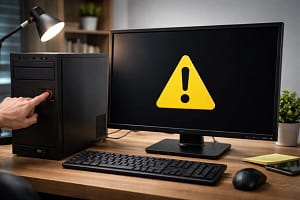
Check Power Issues (Desktop Not Turning ON) 2026A desktop computer not turning ON is one of the most common and frustrating problems faced by users. When you press the power button and nothing happens—no lights, no fan noise, no display—it usually points to a power-related issue. This guide explains all possible power issues, their causes, and step-by-step troubleshooting methods, from basic checks to advanced hardware diagnostics.
1. Understanding the Power Flow in a Desktop Computer
Check Power Issues (Desktop Not Turning ON) 2026
Before troubleshooting, it’s important to understand how power flows in a desktop PC:
- Wall socket →
- Power cable →
- SMPS (Power Supply Unit) →
- Motherboard →
- CPU, RAM, storage, GPU, and peripherals
A failure at any stage can prevent the desktop from turning ON.
2. Common Symptoms of Power Issues
Check Power Issues (Desktop Not Turning ON) 2026
You may observe one or more of the following:
- Desktop completely dead (no lights, no fan)
- Power LED not glowing
- Fans spin briefly and stop
- Clicking sound from SMPS
- System turns ON only after multiple attempts
- Power light ON but no display
- Burning smell or unusual noise
Each symptom points to a specific category of power failure.
3. Basic External Power Checks (First-Level Troubleshooting)
Check Power Issues (Desktop Not Turning ON) 2026
3.1 Check Wall Socket Power
Steps:
- Plug another working device (fan, phone charger, lamp) into the same socket
- Try a different wall socket
- Ensure power supply is stable
Why this matters:
No power from the wall means the PC cannot start, regardless of internal health.
3.2 Inspect the Power Cable
Things to check:
- Loose connection at SMPS or wall socket
- Damaged, cut, or bent cable
- Burn marks near plug points
Solution:
- Replace the power cable with a known working one
Tip:


Power cables are inexpensive but often overlooked.
3.3 Check UPS / Surge Protector
If using a UPS or extension board:
- Ensure UPS is turned ON
- Check UPS battery status
- Plug PC directly into wall socket for testing
- Avoid faulty spike guards
Many desktops fail to start simply due to a dead UPS battery.
4. SMPS (Power Supply Unit) Related Issues
Check Power Issues (Desktop Not Turning ON) 2026
The SMPS is the heart of power delivery in a desktop.
4.1 Check SMPS Power Switch
At the back of the CPU cabinet:
- Ensure SMPS switch is in ON ( | ) position
- Many users accidentally switch it OFF ( O )
4.2 Check SMPS Indicator (If Available)
Some SMPS units have:
- LED indicators
- Clicking or fan spin sounds
No response
usually means:
- SMPS failure
- No input power
4.3 SMPS Fan Not Spinning
- If SMPS fan doesn’t spin at all → SMPS likely dead
- If fan spins briefly and stops → protection circuit triggered
4.4 Paper Clip Test (Advanced)
⚠️ Only for experienced users
Steps:
- Disconnect SMPS from motherboard
- Insert paper clip between green wire and black wire in 24-pin connector
- Plug power cable and switch ON
Result:
- Fan spins → SMPS may be okay
- No fan → SMPS faulty
4.5 Common SMPS Failure Causes
- Power surges
- Overheating
- Dust accumulation
- Cheap or low-quality PSU
- Overloading (high-end GPU with low watt PSU)
5. Power Button & Front Panel Issues
5.1 Faulty Power Button
Sometimes the power button itself is defective.
Symptoms:
- Pressing button does nothing
- Button feels loose or stuck
5.2 Check Front Panel Connections
Inside the cabinet:

- Power SW cable may be loose
- Incorrect connection to motherboard pins
Solution:
- Reconnect Power SW pins correctly
- Try shorting power pins with screwdriver (test only)
6. Motherboard Power Issues
6.1 Loose Motherboard Power Cables
Ensure:
- 24-pin ATX power cable firmly connected
- 4-pin / 8-pin CPU power cable connected
Loose cables can cause:
- No power
- Sudden shutdowns
6.2 Motherboard Short Circuit
Causes:
- Extra standoff touching motherboard
- Loose screws
- Liquid spillage
- Burnt components
Symptoms:
- System doesn’t turn ON
- SMPS shuts down immediately
6.3 CMOS Battery Issues (Rare)
- Dead CMOS battery usually doesn’t prevent power ON
- In rare cases, replacing CR2032 battery helps
7. RAM & Component Power Protection
7.1 RAM Not Properly Seated
Incorrect RAM seating can cause:
- No power response
- Continuous beeps (if power partially works)
Steps:
- Remove RAM
- Clean slot with air blower
- Reinsert firmly
7.2 Remove All External Devices
Disconnect:
- USB devices
- External HDD
- Printer
- Webcam
Faulty peripherals can short power lines.
8. CPU & Cooling Related Power Shutdown
8.1 CPU Power Connector Missing
If CPU power cable is not connected:
- System won’t turn ON
- Fans may spin briefly
8.2 CPU Overheating Protection
- Improper CPU cooler installation
- Dried thermal paste
- CPU fan not connected
Modern motherboards block startup to protect CPU.
9. Cabinet & Environmental Factors
9.1 Dust Accumulation
Dust causes:
- Overheating
- Short circuits
- SMPS choking
Solution:
- Clean cabinet every 3–6 months
9.2 Moisture & Humidity
High humidity can:
- Corrode motherboard
- Cause short circuits
Avoid placing desktops near:

- Windows
- Kitchens
- Wet floors
10. Advanced Diagnostics (Technician Level)
10.1 Test with Another SMPS
Best way to confirm:
- Replace SMPS with known working unit
- Check wattage compatibility
10.2 Breadboard Testing
- Remove motherboard from cabinet
- Place on cardboard
- Connect only CPU, RAM, and SMPS
If system turns ON → cabinet short issue.
10.3 Multimeter Voltage Test
Check:
- +12V
- +5V
- +3.3V rails
Incorrect voltage = faulty PSU.
11. Common Mistakes to Avoid
- Repeated power ON attempts during short circuit
- Using cheap power supplies
- Ignoring burning smell
- Opening SMPS without expertise
- Mixing incompatible components
12. When to Replace Components
| Component | Replace When |
|---|---|
| Power Cable | Visible damage |
| SMPS | No output, burnt smell |
| Motherboard | No power after SMPS test |
| Power Button | Physically broken |
13. Safety Tips During Power Troubleshooting
- Always unplug before opening cabinet
- Discharge static electricity
- Avoid touching SMPS internals
- Use insulated tools
- Don’t test with wet hands
14. Preventive Measures
- Use branded SMPS (80+ Certified)
- Install UPS with surge protection
- Regular dust cleaning
- Proper ventilation
- Avoid power overload
15. Conclusion
Check Power Issues (Desktop Not Turning ON) 2026
A desktop not turning ON is usually caused by power-related problems, and most issues can be resolved through systematic troubleshooting. Starting from simple checks like wall sockets and power cables to advanced diagnostics like SMPS testing and motherboard inspection, identifying the exact cause saves time and money.
Regular maintenance, quality power components, and safe handling practices can prevent most power failures and significantly extend your desktop’s lifespan.
If you want, I can also:
- ✅ Create a featured image
- ✅ Convert this into HTML format
- ✅ Write MCQs or interview questions
- ✅ Translate into Telugu or Hindi
Just tell me 👍
please subscribe my website to click here
please subscribe my website to click here