how to resolve laptop blue screen error 2026how to resolve laptop blue screen error 2026
How to Resolve Laptop Blue Screen Error (BSOD) – Complete Guide (2026)
Introduction
how to resolve laptop blue screen error 2026how to resolve laptop blue screen error 2026
A Blue Screen Error, commonly called BSOD (Blue Screen of Death), is one of the most serious problems in Windows laptops. When this error occurs, Windows suddenly crashes and displays a blue screen with an error message, forcing the system to restart.
BSOD usually indicates:
Hardware failure
Driver issues
Corrupted system files
Malware attacks
Windows update problems
This guide explains every possible cause and solution in a step-by-step manner, from basic fixes to advanced troubleshooting.
What Is a Blue Screen Error?
how to resolve laptop blue screen error 2026
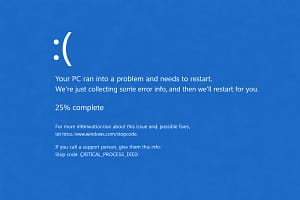
A Blue Screen Error happens when Windows encounters a critical error it cannot recover from safely. To protect your data and hardware, Windows stops running and shows a blue screen with:
Error code (STOP CODE)
Error description
QR code (in Windows 10/11)
Common BSOD Messages
CRITICAL_PROCESS_DIED
IRQL_NOT_LESS_OR_EQUAL
SYSTEM_SERVICE_EXCEPTION
MEMORY_MANAGEMENT
PAGE_FAULT_IN_NONPAGED_AREA
DRIVER_POWER_STATE_FAILURE
KMODE_EXCEPTION_NOT_HANDLED
Main Causes of Laptop Blue Screen Error
how to resolve laptop blue screen error 2026
1. Faulty or Incompatible Drivers
Drivers control communication between hardware and Windows. If they are outdated or corrupted, BSOD can occur.
2. Windows Update Issues
Incomplete or failed Windows updates often cause system crashes.
3. Hardware Problems
Faulty RAM
Failing hard disk / SSD
Overheating CPU or GPU
Loose internal connections
4. Malware or Virus Infection
Malicious software can damage system files and cause blue screen errors.
5. Corrupted System Files
Important Windows files may be damaged due to sudden shutdowns or power failures.
6. BIOS or Firmware Issues
Outdated BIOS settings or incorrect configurations may cause BSOD.
7. Third-Party Software Conflicts
Antivirus, VPNs, overclocking tools, or cracked software can conflict with Windows.
Step-by-Step Solutions to Fix Laptop Blue Screen Error
STEP 1: Restart Your Laptop (Basic Check)
Sometimes BSOD happens due to a temporary glitch.
✔ Restart your laptop
✔ Remove external devices (USB, printer, external HDD)
✔ Check if the issue repeats
If BSOD continues, proceed to the next steps.
STEP 2: Note the Stop Code
When BSOD appears, carefully note:
Stop Code
Error description
Example:
STOP CODE: MEMORY_MANAGEMENT
This helps identify the root cause.
STEP 3: Boot Laptop into Safe Mode
Safe Mode loads Windows with minimum drivers.
How to Enter Safe Mode
Power on laptop
Force shutdown 2–3 times during Windows loading
Windows Recovery Environment appears
Select:
Troubleshoot
Advanced Options
Startup Settings
Restart
Press 4 or F4 for Safe Mode
If laptop works fine in Safe Mode, the issue is likely driver or software related.
STEP 4: Update All Device Drivers
Outdated drivers are the #1 reason for BSOD.
Update Drivers Using Device Manager
Press Windows + X
Select Device Manager
Right-click on:
Display adapters
Network adapters
Storage controllers
Click Update Driver
✔ Focus especially on:
Graphics driver
Wi-Fi driver
Chipset driver
STEP 5: Roll Back Recent Driver Updates
If BSOD started after updating a driver:
Open Device Manager
Right-click the suspected device
Click Properties
Go to Driver tab
Select Roll Back Driver
Restart the laptop.
STEP 6: Run Windows Memory Diagnostic (RAM Check)
Faulty RAM causes frequent BSOD.
Steps:
Press Windows + R
Type: mdsched.exe
Click Restart now and check for problems
Windows will test memory and report errors.
If errors are found → Replace RAM.
STEP 7: Check Hard Disk / SSD Health
Bad sectors or failing drives cause crashes.
Run CHKDSK Command
Open Command Prompt (Admin)
Type:
chkdsk C: /f /r
Press Y and restart
This scans and repairs disk errors.
STEP 8: Repair Windows System Files (SFC & DISM)
Corrupted system files cause BSOD.
Run SFC Scan
sfc /scannow
Run DISM Commands
DISM /Online /Cleanup-Image /RestoreHealth
Restart after completion.
STEP 9: Uninstall Recently Installed Software
Remove:
Third-party antivirus
VPN software
Overclocking tools
Cracked applications
Steps:
Control Panel
Programs and Features
Uninstall suspicious or recent software
STEP 10: Scan for Viruses and Malware
Use:
Windows Defender (recommended)
Full system scan
Windows Defender Full Scan:
Open Windows Security
Virus & Threat Protection
Scan options
Full scan
STEP 11: Update Windows Completely
Outdated Windows builds can cause instability.
Settings
Windows Update
Check for updates
Install all updates
Restart system.
STEP 12: Disable Fast Startup
Fast Startup sometimes conflicts with drivers.
Control Panel
Power Options
Choose what power buttons do
Change settings currently unavailable
Uncheck Turn on fast startup
STEP 13: Check Laptop Temperature (Overheating)
Overheating causes sudden BSOD shutdowns.
✔ Clean laptop vents
✔ Use cooling pad
✔ Replace thermal paste (advanced users)
STEP 14: Update BIOS (Advanced Users)
Outdated BIOS may cause hardware conflicts.
⚠ Update BIOS only from official laptop manufacturer website.
STEP 15: System Restore
If BSOD started recently:
Open Control Panel
Recovery
Open System Restore
Choose earlier restore point
STEP 16: Reset Windows (Last Option)
If nothing works:
Keep Files Reset
Settings
Recovery
Reset this PC
Keep my files
This reinstalls Windows without deleting personal data.
When to Replace Hardware?
Replace hardware if:
RAM errors detected
Hard disk SMART errors
Laptop shuts down due to heat
BSOD persists even after clean Windows install
Tips to Prevent Blue Screen Errors
✔ Always update drivers
✔ Use genuine Windows
✔ Avoid cracked software
✔ Keep laptop clean
✔ Monitor temperatures
✔ Create system restore points
Conclusion
Laptop Blue Screen Error is serious but fixable in most cases. By following this step-by-step guide, you can diagnose and resolve BSOD issues caused by drivers, hardware, Windows updates, or malware.
If the problem still continues after all solutions, it is recommended to consult an authorized service center, as the issue may be hardware-level failure.