how to reset Quickly Reset Windows 10 and 11 Passwords without any Tools 2026
how to reset Quickly Reset Windows 10 and 11 Passwords without any Tools 2026

How to Quickly Reset Windows 10 & Windows 11 Passwords Without Any Tools (2026 Guide
video link to clilck here
how to reset Quickly Reset Windows 10 and 11 Passwords without any Tools 2026Important Notice (Please Read First)
This guide is strictly for your own computer. Resetting or accessing someone else’s PC without permission is illegal. All methods explained here use official Windows options and Microsoft-approved recovery processes.
Who This Guide Is For
how to reset Quickly Reset Windows 10 and 11 Passwords without any Tools 2026
- You forgot your Windows 10 or Windows 11 login password
- You want to reset the password without USB tools, software, or CMD hacks
- You want safe, legal, and fast methods
- Works in 2026 with latest Windows updates
Types of Windows Accounts (Very Important)
how to reset Quickly Reset Windows 10 and 11 Passwords without any Tools 2026
Before resetting, identify your account type:
| Account Type | Can Reset Easily? |
|---|---|
| Microsoft Account | ✅ Yes (Online reset) |
| Local Account | ⚠️ Limited options |
| Administrator Account | ✅ Yes |
| Standard User | ❌ Needs admin help |
Method 1: Reset Password Using Microsoft Account (Fastest & Safest)
how to reset Quickly Reset Windows 10 and 11 Passwords without any Tools 2026
✅ Works for Windows 10 & 11
Best Method If Your PC Is Connected to Internet
If your login email looks like this:
Then you are using a Microsoft Account.


Steps to Reset Microsoft Account Password
- On the login screen, enter wrong password
- Click “I forgot my password”
- Choose Email / Phone verification
- Enter the OTP code
- Create a new password
- Restart PC
- Login with the new password
⏱️ Time Required: 3–5 minutes
🔐 Data Safety: 100% Safe (No data loss)
Reset Using Another Device (Mobile / Laptop)
how to reset Quickly Reset Windows 10 and 11 Passwords without any Tools 2026
- Open browser
- Go to Microsoft account recovery page
- Enter your email
- Verify OTP
- Set new password
- Connect PC to internet
- Login again
Common Problems & Fixes
| Problem | Solution |
|---|---|
| No internet | Connect via Ethernet |
| Phone number changed | Use email verification |
| Account locked | Wait 24 hours |
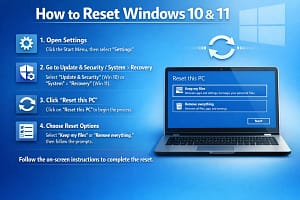
Method 2: Reset Windows Using Built-In “Reset This PC” (No Tools)
⚠️ Last Option – May Remove Apps
If you don’t remember local account password, this is the official Windows method.
Reset Windows While Keeping Files
- On login screen
- Click Power icon
- Hold Shift key
- Click Restart
- Choose Troubleshoot
- Select Reset this PC
- Click Keep my files
- Choose Local reinstall
- Follow instructions
🧾 What Happens?
- Personal files remain
- Apps removed
- Password reset
- Windows refreshed
⏱️ Time: 20–40 minutes
Method 3: Sign In Using PIN, Face, or Fingerprint (Often Forgotten!)
how to reset Quickly Reset Windows 10 and 11 Passwords without any Tools 2026
Many users forget they already have alternative sign-in methods enabled.
Try These Options on Login Screen
- PIN
- Fingerprint
- Face recognition
- Security key
If successful:
- Login
- Go to Settings → Accounts → Sign-in options
- Change password easily
Method 4: Use Another Administrator Account (If Available)
If your PC has another admin user, password reset is easy.
Steps
- Login with Admin Account
- Open Settings
- Go to Accounts → Other users
- Select locked account
- Click Change password
- Set new password
- Restart and login
⚠️ Works only if admin access exists
Method 5: Windows Automatic Repair Account Recovery (2026 Feature)
how to reset Quickly Reset Windows 10 and 11 Passwords without any Tools 2026

Newer Windows builds sometimes prompt Account Recovery Assistant.
How It Works
- Windows detects repeated failed logins
- Offers recovery options
- Verifies Microsoft account
- Allows reset without reinstall
📌 Availability depends on Windows version & updates
What NOT to Do (Very Important)
❌ CMD password hacks
❌ utilman.exe tricks
❌ Third-party cracking software
❌ YouTube “password bypass” videos
❌ Download ISO cracks
⚠️ These can:
- Break Windows updates
- Cause boot failure
- Trigger BitLocker lock
- Violate cyber laws
Windows 10 vs Windows 11 Password Reset Comparison
how to reset Quickly Reset Windows 10 and 11 Passwords without any Tools 2026
| Feature | Windows 10 | Windows 11 |
|---|---|---|
| Microsoft Account Reset | ✅ | ✅ |
| Reset This PC | ✅ | ✅ |
| Biometric Login | Limited | Advanced |
| Recovery UI | Old | Improved |
| Security | Good | Better |
If BitLocker Is Enabled
how to reset Quickly Reset Windows 10 and 11 Passwords without any Tools 2026
If you reset Windows:
- You MUST have BitLocker recovery key
- Stored in:
- Microsoft account
- Printed copy
⚠️ Without it → Data loss possible
Best Prevention Tips (So You Never Face This Again)
how to reset Quickly Reset Windows 10 and 11 Passwords without any Tools 2026
1. Use Microsoft Account
Easiest recovery method
2. Enable PIN Login
Much easier than password
3. Add Recovery Email & Phone
Helps in OTP verification

4. Backup Important Files
Use OneDrive or external disk
5. Write Down BitLocker Key
Store safely
Frequently Asked Questions (FAQ)
Q1: Can I reset Windows password without losing data?
✅ Yes, if Microsoft account or admin access exists.
Q2: Can I reset password without USB or software?
✅ Yes, using methods explained above.
Q3: Does this work in 2026 updates?
✅ Yes, Microsoft account recovery remains standard.
Q4: Is password reset legal?
✅ Only for your own device.
Q5: What if I forgot both email & password?
⚠️ You must use Reset This PC option.
Final Verdict (2026 Recommendation)
✔ Best & Fastest Method: Microsoft Account Reset
✔ Safest Offline Method: Reset This PC (Keep files)
✔ Avoid: Illegal CMD or cracking tricks
please subscribe my website to click here