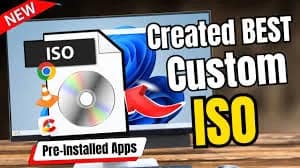
1 Introduction: How to Create a Custom Windows ISO with Preinstalled Software Included for FREE! (2025)
In today’s fast-paced digital world, installing Windows and then spending hours adding drivers, essential applications, updates, and system tweaks can be frustrating. Whether you are a technician, a power user, or simply someone who installs Windows frequently, creating your own customized Windows ISO can save you time, effort, and improve overall installation efficiency.
A Custom Windows ISO allows you to integrate your favorite apps, drivers, themes, settings, and updates directly into the installation setup. This means once Windows is installed, everything you need is already included — no extra installations, no manual configuration, and no repeating the same tasks again and again.
The best part? You can create this fully customized Windows setup 100% FREE using powerful tools like NTLite, WinReducer, DISM, and Microsoft ADK. With these tools, you can add preinstalled software, remove unwanted bloatware, tweak performance settings, and even automate the entire installation with zero clicks.
In this guide, you’ll learn step-by-step how to build your own personalized Windows ISO for 2025 that includes:
Preinstalled essential software
Latest drivers and Windows updates
Custom themes and settings
Performance optimizations
Automated installation scripts
And more — all at no cost!
By the end of this tutorial, you’ll have a fully customized Windows installer that saves hours of setup time and delivers a polished, ready-to-use system every time.
2
2⭐ Key Features: How to Create a Custom Windows ISO with Preinstalled Software Included for FREE!
How to Create a Custom Windows ISO with Preinstalled Software Included for FREE! 2025
Creating a custom Windows ISO with preinstalled software is one of the best ways to save time, automate installations, and deploy a fully configured system in minutes. The process is 100% free using open-source and trusted tools. Below are the key features you get when building your own custom ISO in 2025:
✅ 1. Full Windows Customization
You can personalize every part of the Windows installation before creating the ISO, including:
This eliminates problems like “No Network Found”, “Missing Drivers”, or installation failures on new hardware.
✅ 4. Unattended Installation (Auto-Install)
You can create a fully unattended installation, meaning:
Auto-accept license
Auto-select edition
Auto-create user name/password
Auto-set region/time
Auto-apply custom settings
Windows installs by itself without asking a single question.
Great for PC technicians and system builders.
✅ 5. Updated Windows ISO (Latest Version)
Customize the latest Windows ISO with:
Latest cumulative updates
.NET Framework updates
Security patches
Optional feature packs
This ensures you start with a fresh, secure, and fast operating system.
✅ 6. Works With Both Windows 10 & Windows 11
The method supports:
Windows 10 Home/Pro
Windows 11 Home/Pro
21H2 / 22H2 / 23H2 / 2025 builds
Both Legacy BIOS + UEFI Boot
Both x64 and ARM64 versions
So you can create ISOs for any machine.
✅ 7. Completely Free Tools
You can create everything using free software like:
NTLite (Free Version) – basic customization
Win Toolkit – ISO modification
WinReducer – deep customization
DISM (built into Windows) – image servicing
Snappy Driver Installer Origin – offline drivers
Rufus – bootable USB creation
No premium or paid tools required.
✅ 8. Easy to Use – Even for Beginners
https://sreekrishnatechsolutions.com/
Most tools offer:
Drag-and-drop interface
Clear menus
Step-by-step workflows
Automatic presets
Clean GUI-based options
This makes customization possible even without advanced technical skills.
✅ 9. Portable and Reusable ISO
Once created, your custom ISO becomes:
Reusable for unlimited installations
Shareable with technicians
Ideal for installing Windows on multiple PCs
Perfect for PC shops and service centers
Time-saving for formatting/reinstallation tasks
Your custom setup is always ready.
✅ 10. Faster Setup with Preconfigured Settings
Your personalized ISO can include:
Start menu layout
Taskbar configuration
System tweaks
Registry tweaks
Power plan settings
Performance optimizations
Disabled telemetry (optional)
So after installation, everything works exactly as you planned.
🎯 Final Words
These key features make custom Windows ISO creation:
Faster
Easier
More powerful
Fully automated
Completely customizable
3 How to Create a Custom Windows ISO with Preinstalled Software – App Details
How to Create a Custom Windows ISO with Preinstalled Software Included for FREE! 2025
Creating a custom Windows ISO allows you to streamline Windows installations by including all the software, drivers, and updates you frequently use. Several free tools make this possible, allowing users to build a personalized installation image. Below are the key app details and features you need to know.
There isn’t a single official “Windows ISO Customizer,” but several free applications facilitate this process. The most commonly used are:
NTLite (Free Version) – For modifying Windows installation images and integrating drivers, updates, and software.
WinToolkit – Allows adding software and customizations to a Windows ISO.
Rufus – While mainly for creating bootable USB drives, it works well with customized ISOs.
The purpose of these apps is to save time and reduce repetitive setup tasks by creating a Windows installation that is ready to use immediately after installation.
2. Key Features of Custom Windows ISO Apps
Software Integration
Include frequently used software such as browsers, productivity tools, media players, antivirus programs, or utility apps.
Preinstall apps so that Windows is ready for use immediately after installation.
Driver Integration
Integrate essential drivers (graphics, network, audio) directly into the ISO.
Ensures a smooth installation without missing device drivers.
Windows Updates
Include the latest Windows updates in your custom ISO to save time after installation.
Ensures your Windows setup is secure and up to date from day one.
Settings & Customizations
Configure default settings, themes, and personalization options.
Remove unnecessary apps and bloatware to optimize performance.
Bootable Media Creation
Convert the custom ISO into a bootable USB or DVD.
Use tools like Rufus to make the ISO installation-ready.
3. Supported Windows Versions
Windows 10 (Home, Pro, Enterprise)
Windows 11 (Home, Pro, Enterprise)
Older versions like Windows 7 and 8.1 (limited support in some apps)
4. System Requirements
A Windows PC (64-bit recommended for large ISO files)
Minimum 8GB free storage for temporary files and ISO creation
Administrative privileges for integrating software and drivers
Consistency: All PCs installed from this ISO will have the same software setup.
Optimized Performance: Remove unnecessary apps and integrate drivers for better performance.
Convenience: Perfect for IT professionals, technicians, or anyone reinstalling Windows frequently.
7. Precautions
Only download software from trusted sources to avoid malware.
Test the ISO in a virtual machine before using it on your main PC.
Back up existing data before installing a custom ISO.
4
Here is a clear, easy‑to‑follow guide on how to use the method for creating a Custom Windows ISO with Preinstalled Software — for FREE.
This explains the usage steps, tools, and final installation process.
✅ How to Use “Create a Custom Windows ISO with Preinstalled Software” (FREE Method)
How to Create a Custom Windows ISO with Preinstalled Software Included for FREE! 2025
Below are the complete usage steps so you can create, customize, and install your own Windows ISO with all your favourite software preinstalled.
How to Create a Custom Windows ISO with Preinstalled Software Included for FREE! 2025
Step 1: Create Bootable USB
Use Rufus:
Open Rufus
Select USB drive
Select your custom ISO
Click Start
Step 2: Boot From USB
Restart PC → Press:
F12 (Dell)
F9 (HP)
ESC/F8 (Asus)
F11 (MSI)
Choose USB drive.
Step 3: Install Windows Normally
Windows will install with all your preinstalled software included automatically.
➡ No need to install Chrome, VLC, WinRAR manually
➡ Drivers install automatically
➡ Your tools load after installation
🎉 Done! Your Custom Windows ISO is Ready to Use
You now know how to:
Create a custom ISO
Add preinstalled software
Remove bloat
Install via USB
All using FREE tools
Conclusion
How to Create a Custom Windows ISO with Preinstalled Software Included for FREE! 2025
Creating a custom Windows ISO with preinstalled software is a powerful way to streamline your Windows installation process, saving both time and effort. By integrating your preferred applications, drivers, and system tweaks directly into the ISO, you ensure that every installation is ready-to-use immediately after setup. This approach not only enhances efficiency but also provides a consistent and personalized experience across multiple devices.
The best part is that this process can be accomplished for free, using reliable tools available online. With careful planning, attention to detail, and the right software, anyone—from casual users to IT professionals—can build a customized Windows installation tailored to their needs.
Remember, while customizing Windows ISO offers convenience, it’s essential to keep backups of your original files and ensure that all software included is legitimate and safe. This guarantees a smooth, secure, and optimized installation every time.
By following the steps outlined in this guide, you can take full control of your Windows installations, reduce repetitive setup tasks, and enjoy a more efficient computing experience. Whether you’re deploying Windows on multiple PCs or simply want a personal all-in-one installation package, creating a custom ISO is an invaluable skill in today’s digital world.
If you want, I can also write a shorter, punchy version of this conclusion perfect for blogs or YouTube descriptions. Do you want me to do that?